SocialHook AI / Connect guide
How to connect SocialHook AI
To use SocialHook AI, copy your personal connector address from your dashboard and add it as a custom connector in Claude, ChatGPT or Gemini CLI. There is nothing to download or install. The method, the reference files and your saved brands are then available in every chat, and the connector always runs the latest version. Your dashboard shows the same steps with your own address filled in.
What do you need before you start?
- A licence. After checkout you land on your dashboard. Bookmark it. Your licence key starts with
cs_. - An AI app that accepts custom connectors (also called remote MCP servers): Claude, ChatGPT or Gemini CLI.
- An image generator for the final picture. SocialHook AI writes the prompt; it does not render the image.
Where is your connector address?
Open your dashboard and sign in with the Google account whose email you paid with. If you paid with a different email, paste your licence key once. The first card shows the address with a copy button. It looks like this:
https://visual-hook-engine.ravindudhana.workers.dev/mcp/YOUR_LICENCE_KEYTreat it like a password. Anyone who has the address can use your licence and read your saved brands.
How do you connect it to Claude?
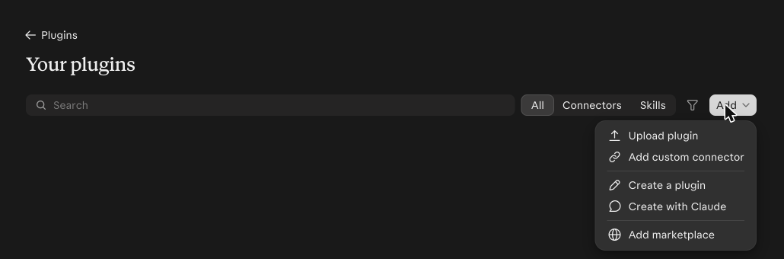
- In Claude (claude.ai or Claude Desktop), choose Plugins in the sidebar and open Your plugins.
- Choose Add, then Add custom connector.
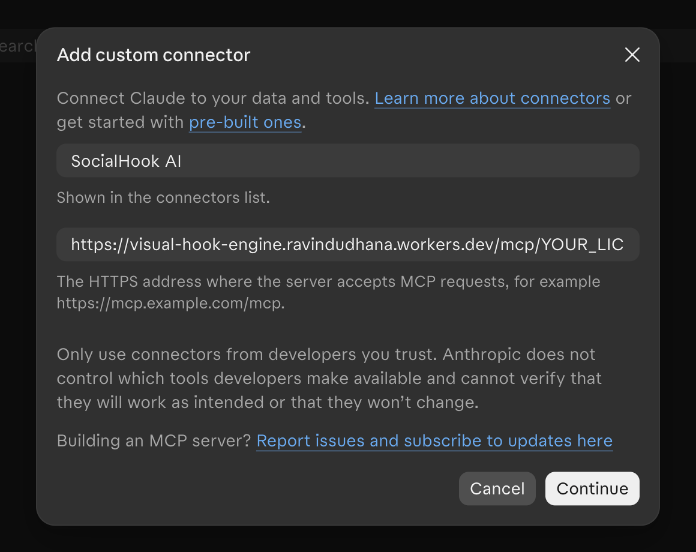
- Type SocialHook AI as the name, paste your connector address into MCP server URL and choose Continue. If Claude asks how to sign in, pick the option without sign-in and finish.
- In a new chat choose +, then Plugins, and switch SocialHook AI on. Allow the tool when Claude asks.
Custom connectors are available on every Claude plan; the free plan allows one. On Team and Enterprise an owner adds the connector for the organisation. In Claude Code, run:
claude mcp add --transport http socialhook https://visual-hook-engine.ravindudhana.workers.dev/mcp/YOUR_LICENCE_KEY --scope userHow do you connect it to ChatGPT?
- In a browser, go to chatgpt.com/plugins, or choose Plugins in the sidebar.
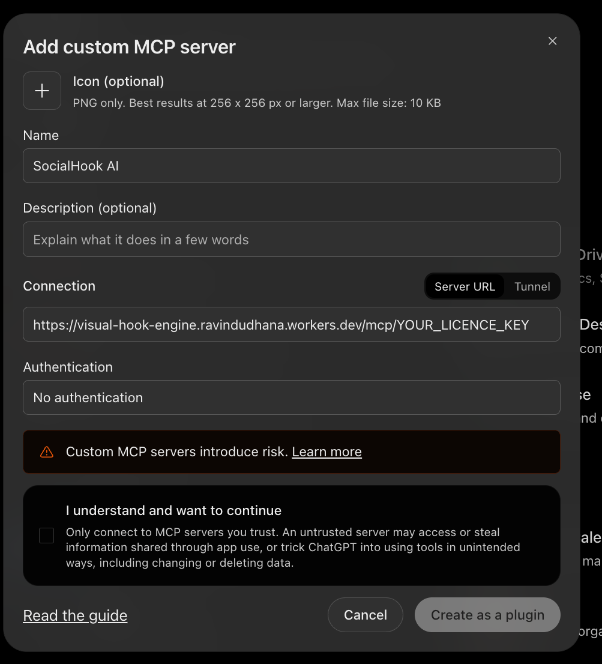
- Choose Add in the top right corner, then Add custom MCP server.
- Type SocialHook AI as the name. Under Connection, paste your connector address as the Server URL, and set Authentication to No authentication.
- Tick I understand and want to continue and choose Create as a plugin.
- In a new chat type @ and pick SocialHook AI.
The option was there on a free ChatGPT account when we checked, but OpenAI changes which plans can create and use custom MCP servers. If you do not see it, your plan or workspace does not have it yet.
How do you connect it to Gemini?
Use Gemini CLI. Run this once in a terminal:
gemini mcp add --transport http -s user socialhook https://visual-hook-engine.ravindudhana.workers.dev/mcp/YOUR_LICENCE_KEYOr add this block to ~/.gemini/settings.json:
{
  "mcpServers": {
    "socialhook": { "httpUrl": "https://visual-hook-engine.ravindudhana.workers.dev/mcp/YOUR_LICENCE_KEY" }
  }
}
Start gemini and type /mcp to check that socialhook is listed. The Gemini web app also has custom apps (Settings, Connected Apps, Add a custom app) for personal accounts in the United States; we have not tested the connector there.
What should you type first?
Set up a brand for <your brand>: a short interview. The profile is saved to your licence.Make a post for <your brand> about <topic>: the full six-stage build.Review this creative: attach a design to have it audited.Plan a month of posts for <your brand>.- Pro:
Make an SC2 post for <your brand> about <product and its one benefit>.
How do updates work?
Updates are automatic. The connector always serves the latest version, so there is nothing to run. Your dashboard and the changelog show what changed. Brand profiles and their rotation logs are stored with your licence and are not affected by updates.
How do you upgrade from Starter to Pro?
Use the offer on your dashboard or open the upgrade page, paste your licence key and pay $50. You land on a new dashboard with a new connector address for Pro. Replace the old address in your apps with the new one. Your saved brands move with you.
What if something does not work?
| Problem | Fix |
|---|---|
| The app says the connector cannot be reached or the licence is not valid | Copy the address again from your dashboard. A mistyped, refunded or unpaid key is refused. |
| The assistant does not use the connector | Switch the connector on for that chat, then ask for a post again, or say "use SocialHook AI". |
| You do not see an option to add a custom connector | Your plan, workspace or region does not offer it. On team plans, ask the owner or admin. |
| You lost your licence key | If you saved it with Google sign-in, sign in on the dashboard. Otherwise write to us from the email you paid with and we will look it up. |
| A brand is missing after upgrading | Make sure the apps use the new Pro address from your new dashboard. |
Still stuck? Write to support@example.com.
How do you disconnect it?
Remove the connector in the same settings screen where you added it. To have your saved brand profiles deleted from our storage, write to support@example.com.